Assets
What do I use assets for?
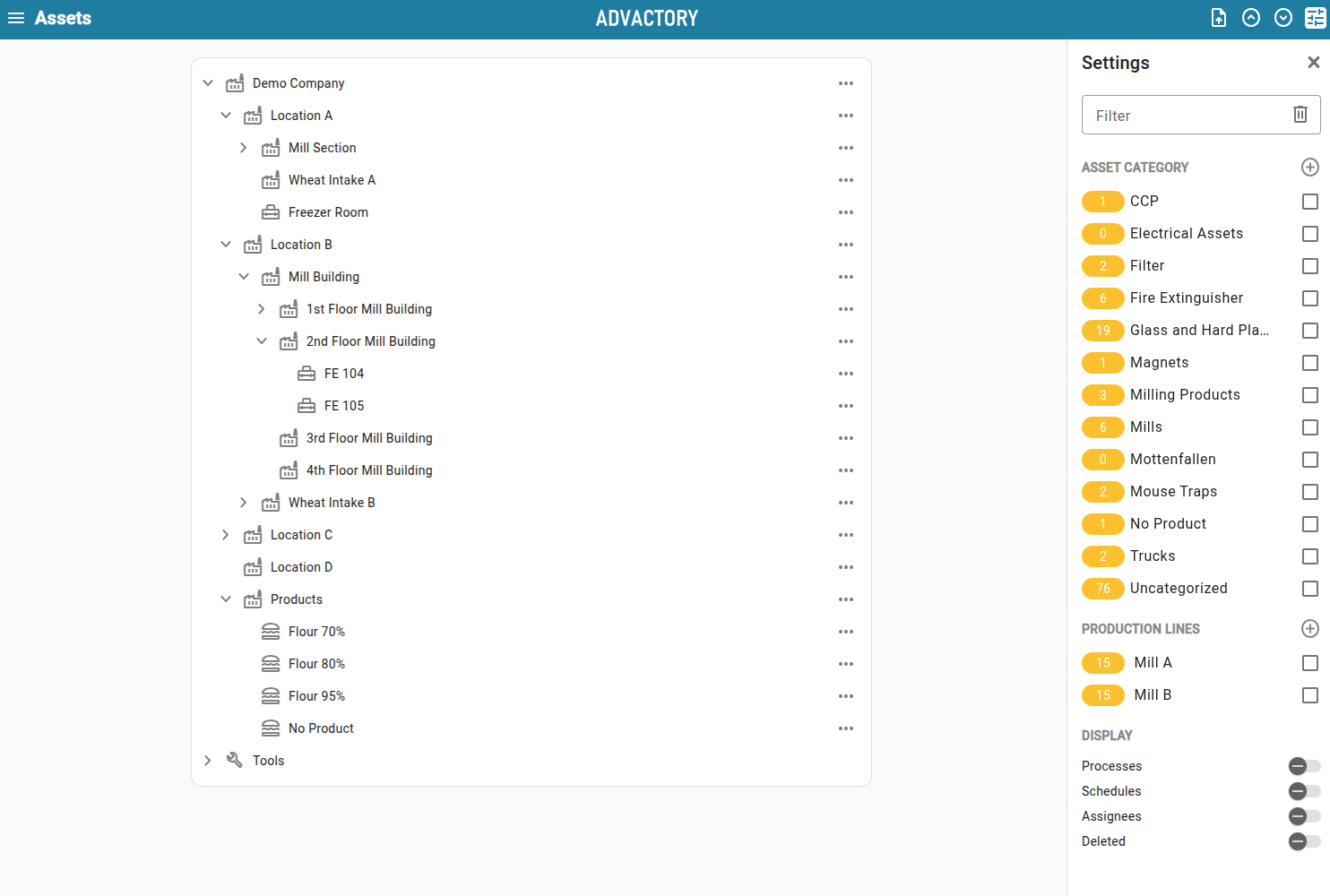
Assets are the reference on which processes are scheduled on. Assets can be of type location, equipment, tool, product or recipe. A well defined asset tree helps to assign tasks to operators in different areas.
If you need to schedule a process on a group of assets of a certain type, you can group them in categories. An asset category can be created on the right handside in the Assets tab as can be seen in the image below.
Creating Assets
Assets can be created through the yellow button in the lower right corner. A parent asset and a timezone should be assigned (timezone is only needed for root assets, all children will inherit from their parent). Depending on the type of asset there are different additional details to fill in. In case of a tool or equipment these can be the serial number or the manufacturer.
There is also the option to provide a custom QR code for the asset, if this is not set there will be provided a standard QR code. QR codes can be used to include a mandatory step of scanning a QR code that is physically attached to an asset e.g. a pipe that needs to be inspected within a task. This ensures that the Operator actually goes to the place where the QR code is located before marking the task as completed. The QR code can be accessed by clicking right on the asset and selecting Print QR Code.
If you need to create or edit many assets at once, go to the sections Bulk Creation and Bulk Editing.
Managing Assets
After creating an asset, you can open the asset menu pressing the three dots or right-clicking on the asset.
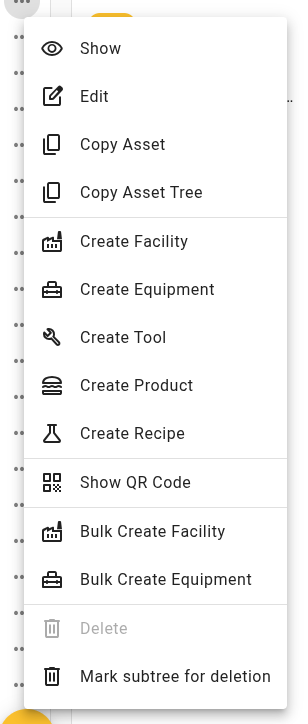
Besides editing and printing out the QR code, it is also possible to duplicate an asset, e.g. if you need a copy with a different parent asset. If you want to delete an asset you can select Mark for Deletion. This will initiate the approval process, similar to the creation of assets. If you want to revert this, open the menu again and select Revert Deletion. After the deletion has been approved, it is not possible anymore to revert the deletion. Deleting an asset with child assets will delete all child assets as well.
Navigating Assets
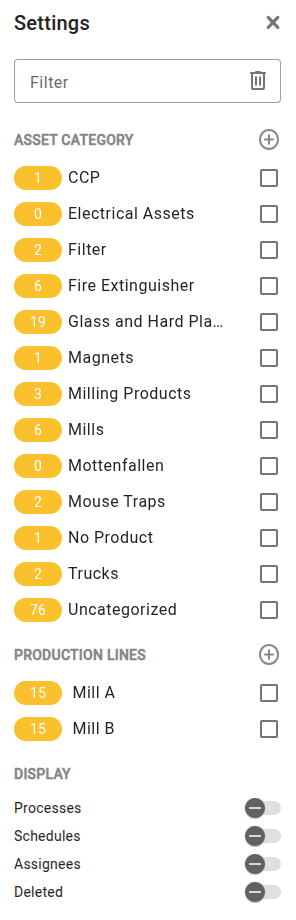
You can filter the asset tree by name through the text filter or by category via category selection. The yellow bubble on the left displays the number of assets in that category. Toggling one of the buttons at the bottom will display more information about the assets or those that have been deleted.
Asset Categories
If you need to execute the same task on multiple assets it might make sense to group them in a category. A Process can then be scheduled for an asset category instead of a single asset. This will create a task for each asset within the category. A category can be created in the Settings panel on the right by clicking on the plus sign and inserting a name.
Parameters
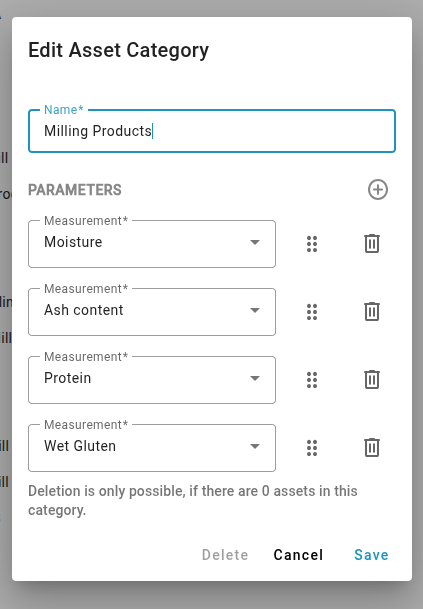
Additionally, parameters can be created for an asset category by clicking on the edit button that appears while hovering over the asset category in the Settings panel. The parameter type is unique and can be selected from the measurements available in your tenant.
Bulk Creation
It is possible to bulk create assets by opening the three-dot menu at the asset as shown in section Managing Assets. Only Facilities and Equipment can be bulk created.
Clicking on Bulk Create Facilities opens the following menu:
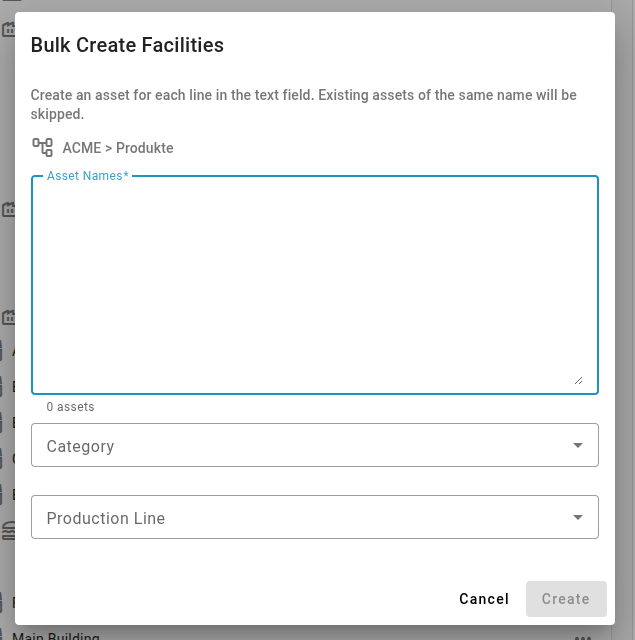
Each line will be counted as one new asset to be created. The parent and timezone of that asset will be inherited from the parent from which the menu has been opened. The Category and Production Line selected by the user will be set for all newly created assets.
Bulk Editing
If it is necessary to apply changes to many assets simultaneously, switch to Edit Mode by clicking the pen icon in the toolbar.
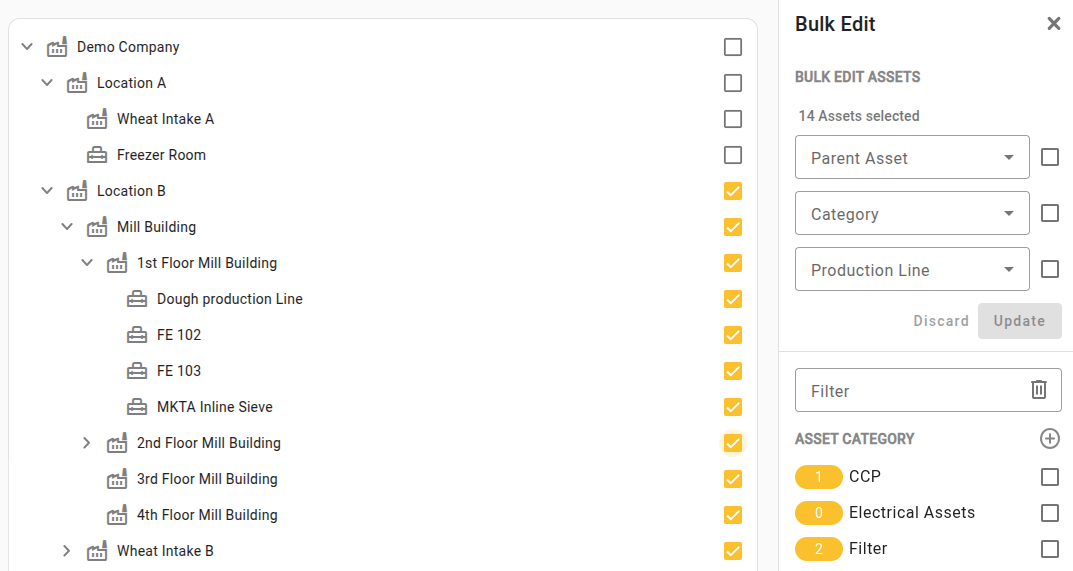
Select/deselect assets using the checkboxes to select the asset and all child assets if available. Select/deselect single assets by clicking at the asset item itself. The selected amount of assets is shown in the Bulk Edit Assets section of the sidepanel, which only appears in edit mode.
Bulk editing is only available for editing the Asset Parent, Asset Category and Production Line. If one or more of these properties is identical for all selected assets, the property is preselected in the Bulk Edit Assets section.
After selecting the new asset properties, mark the checkboxes of the fields that you want to update and press the Update button to save the changes.
If a filter (text filter, category filter, production line filter or combined) is active, only assets that are part of the filter result can be selected. Assets that are part of the filter result are written in bold letters.