Process Plans
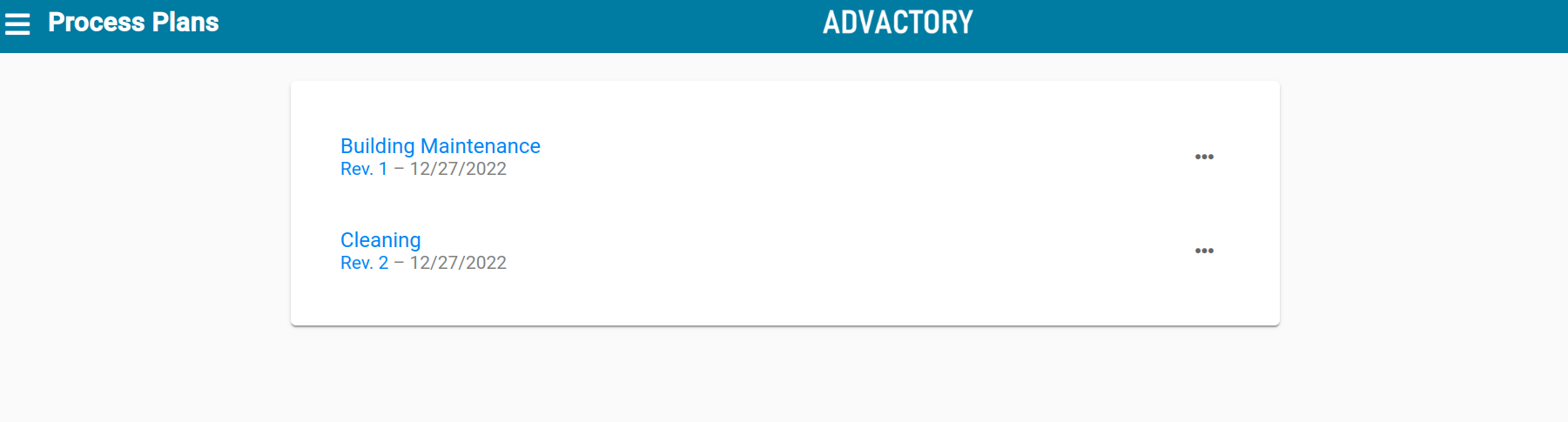
A process plan contains one or multiple processes that are assigned to one or more assets or asset categories. In case many processes have been defined inside a tenant, it makes sense to group them into a process plan.
Create a new Process Plan
To create a new process plan, press the yellow button in the lower right corner. Enter a name for the process plan and add as many entries and schedules as you want by pressing the grey plus sign on the right. One entry per process is required.
A Process Plan consists of entries and schedules, you will find similarities to the Schedules section inside Processes.
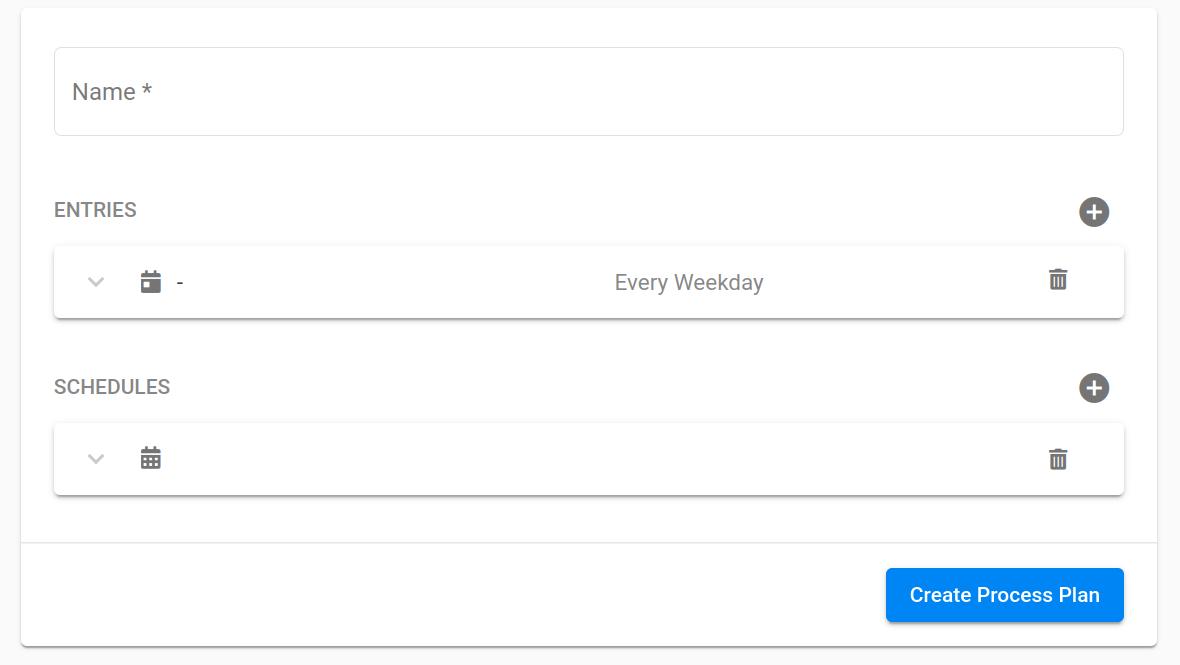
Create Entries within Process Plans
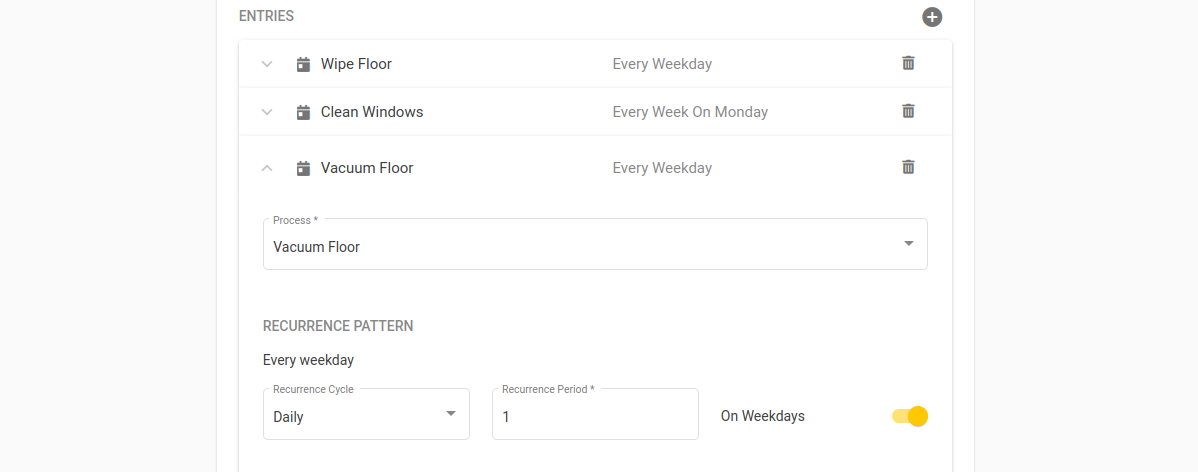
For each entry, select the process you want to include in the plan and choose a recurrence pattern. Set time constraints and make use of advanced settings of needed.
Recurrence Pattern
The Recurrence Pattern marks the period in which a process should be repeated. The options that can be selected are Daily, Weekly, Monthly and Yearly. The Recurrence Period allows more flexibility in the schedule.
Examples:
- If "Daily" is selected and the Recurrence Period is 3, it means the task is scheduled every third weekday
- If "Weekly" is selected and the Recurrence Period is 1, it means the task is scheduled every week
Time Constraints
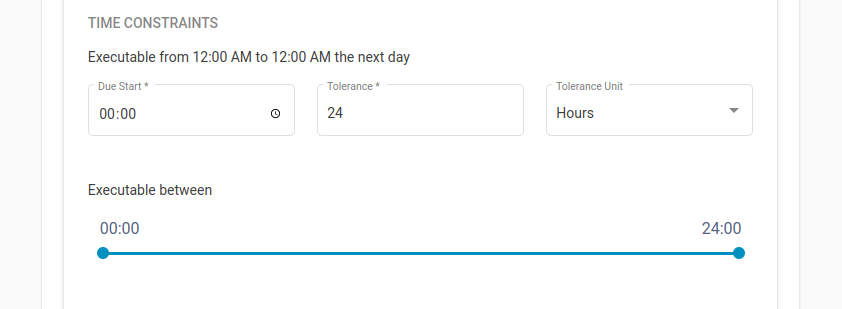
The Time Constraints section contains more functionalities to further customize the schedule like setting the time at which the task will be sent to the Operator's inboxes and a time frame in which the execution of the task is still tolerated. Moreover there can be set a timeframe within the task can be executed.
Example:
Cleaning processes in a warehouse are only allowed when there are no logistical processes running. Therefore the timeframe to execute that task is only allowed between 12am and 4am.
Tasks in Advactory are meant to have a time frame and not to have a specific time at which the task needs to be started.
Advanced Settings
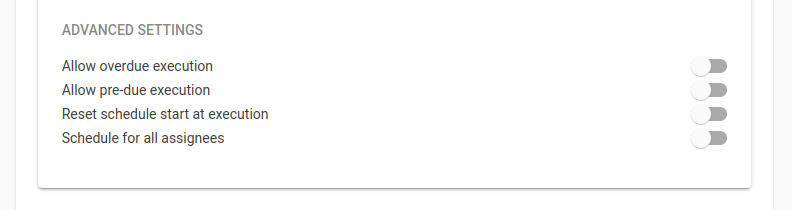
There are a few more options to customize the schedule for a process and adapt it to your organizations needs.
- Overdue Execution: The task can still be executed after the set deadline
- Pre-due Execution: The use-case for pre-due execution is a pre-due maintenance of a machine that is undergoing an unplanned disassembly, e.g., lubrication during repair. This is normally used in conjuction with the reset schedule option to align the maintenance cycle with the current execution.
- Reset schedule start at execution: If a process needs to be executed at least once every 14 days but not necessarily always on the same day, this option ensures that the possible time frame is always the same by resetting the the schedule time for this process after executing it. If this option is not set, it may happen that a process is executed at day 4 and then again at day 26, since it is still within the second time frame. If it is set the next due date would be day 18 (14 days after day 4)
- Schedule for all assignees: All assignees get their own task and have to execute their task seperately to achieve it.
Create Schedules within Process Plans
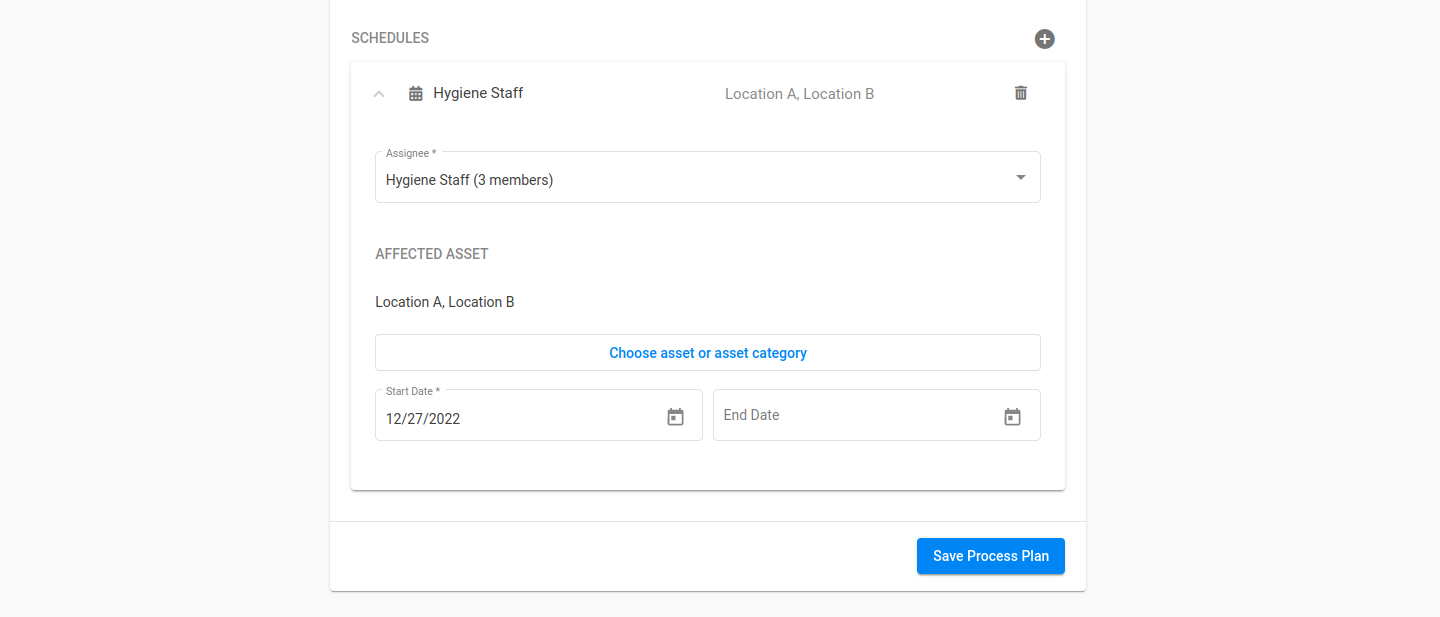
After adding a new Entry, set up a Schedule to complete the Process Plan. First assign a user or a user group to the created process plan. Only the assigned users will see the task in their overview after being scheduled. Afterwards assign one or multiple assets or asset categories. As the last step pick a starting date at which the schedule should begin and, if needed, an end date at which the schedule should stop scheduling tasks.
Some examples:
- If there is one cleaning team that cleans at 2 different locations, assign the cleaning team's users group and choose both assets (the 2 locations)
- If there are 2 cleaning teams that clean at 2 different locations, assign the user group of cleaning team 1 to location A, create a second schedule and assign the user group of cleaning team 2 to location B in the second schedule.
- If the schedule is only valid for a certain time and will then be changed, create 2 schedules with corresponding start and end dates.
If there has been set an approval hierarchy, the new process plan has to be released first after saving. As soon as this happened, new tasks will show up automatically in the Tasks view of the Operator according to the process plan.
Remarks
Adding a process to a process plan will ignore any schedule that has been set within the process during creation. If you want to make use of process plans, make sure to add the schedule inside each entry/process and for each process plan. Delete the schedules inside the single processes, if you already assigned a schedule.
To avoid confusion, choose either to use single processes or process plans and define schedules only in one of the tabs.
IMPORTANT
Keep in mind that setting a schedule for the single process and setting another schedule for the same process inside a process plan will result in having the same task scheduledtwice.