Defining a Notification Template
In this Use Case we will:
- Define a Notification Template for an existing process
- Execute the process with Execute Now
- Inspect the notification that has been sent by the task
As the first step we click on the Process Tab and select an existing process in our list that we want to add a notification template. On the right side of the image below we can see the configuration of one of the steps of our process.
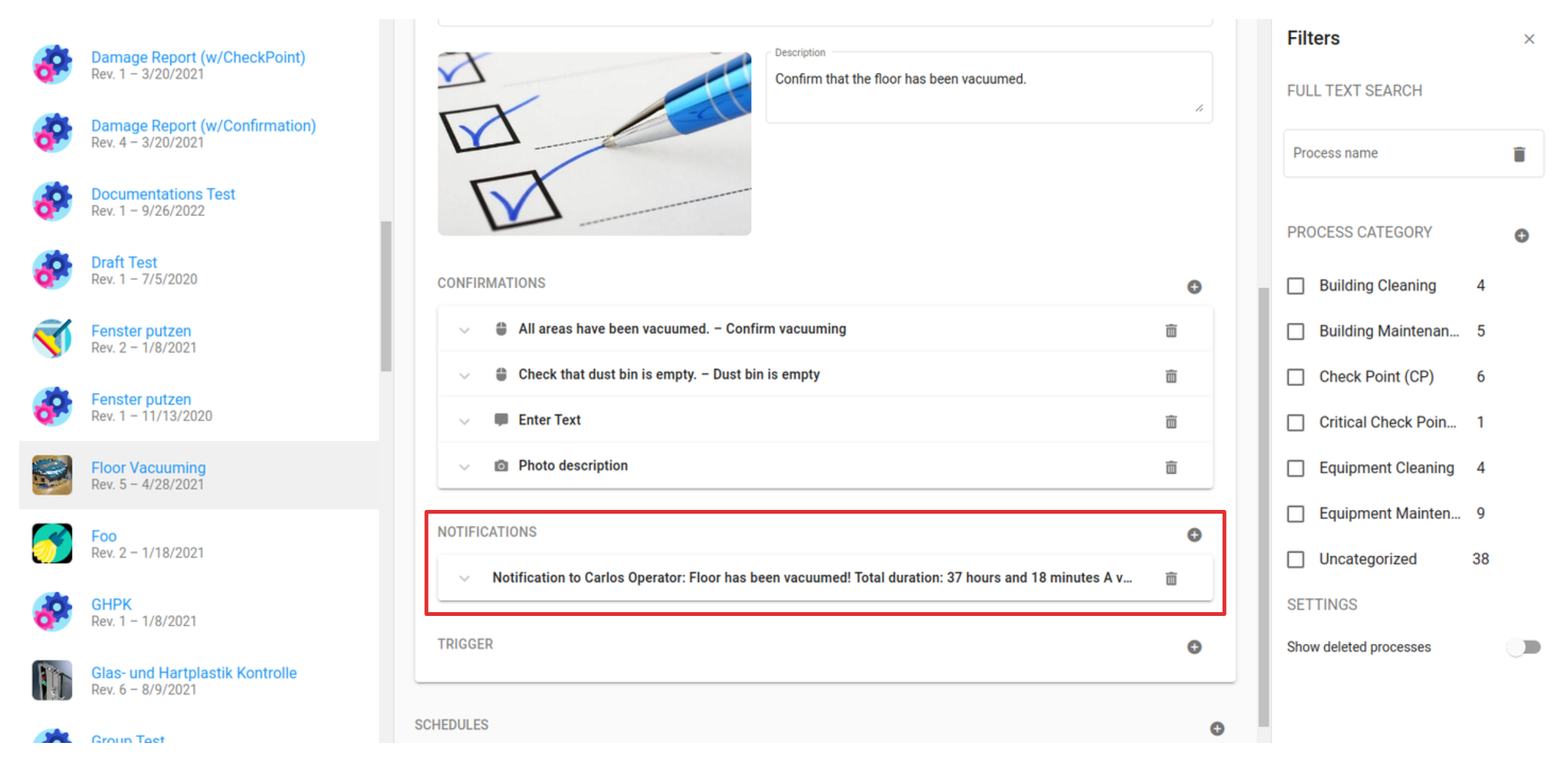
Each step inside our process can have one or more notification templates with one or more recipients. Notification Templates can only be added to Steps of type Confirmation and Checkpoint. They can not be assigned to steps of type Instruction.
Click on the Plus button next to the Notification section of the process to add a new notification template.
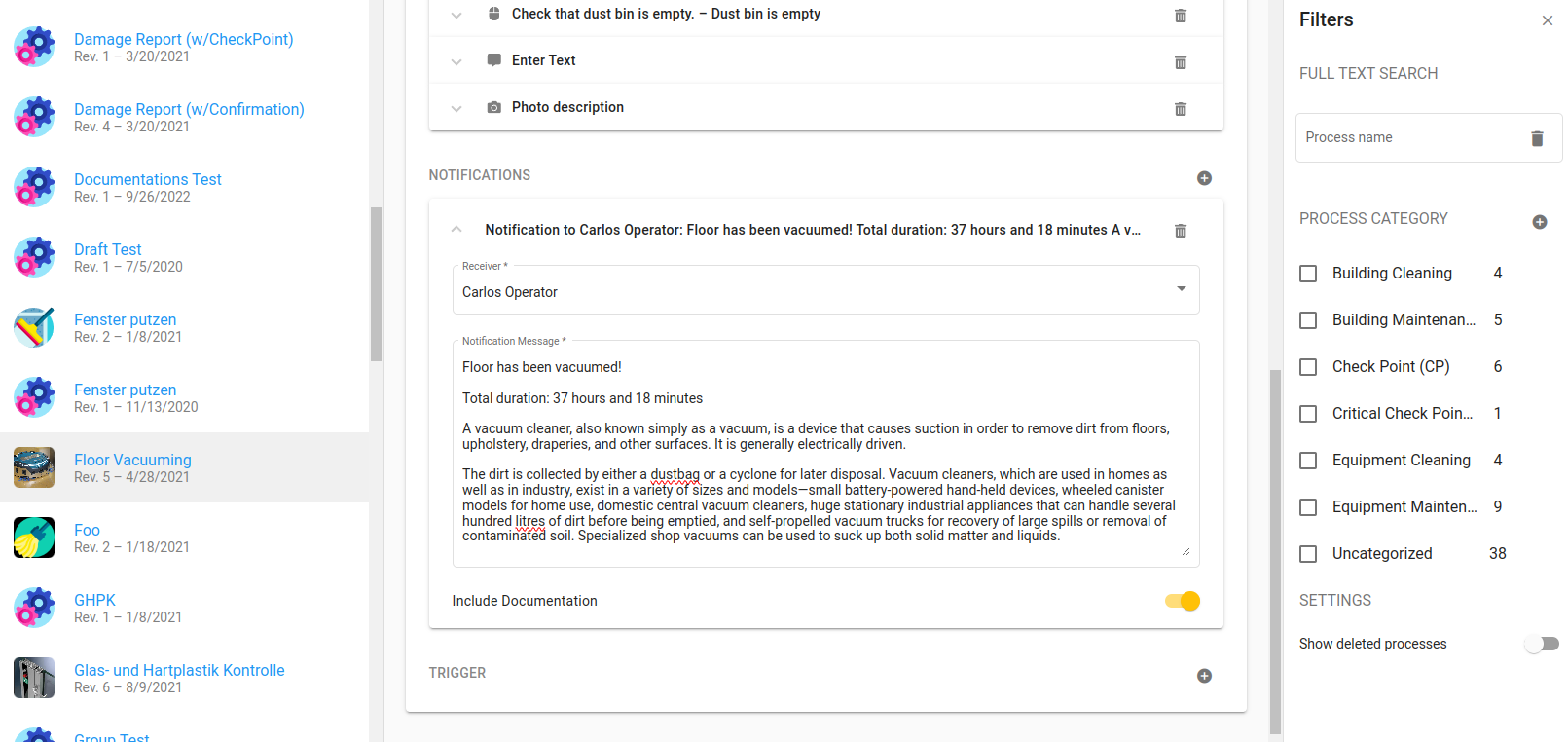
Select the recipient of the notification and insert the notification text, if you want to receive captured documentation, enable the yellow slide toggle below. In case you are defining a Notification Template for a step of type Checkpoint you also need to choose if you want to get notified by succeeded or failed checkpoints by selecting the corresponding radio button.
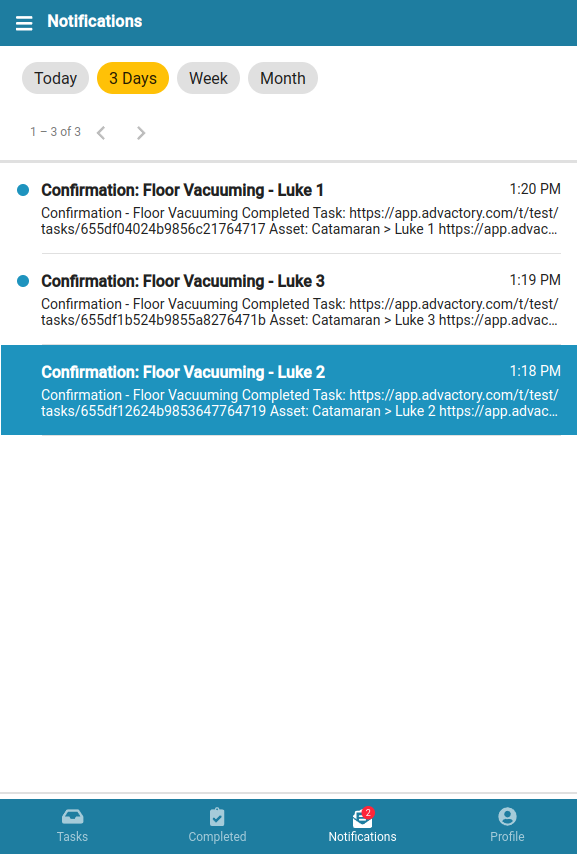
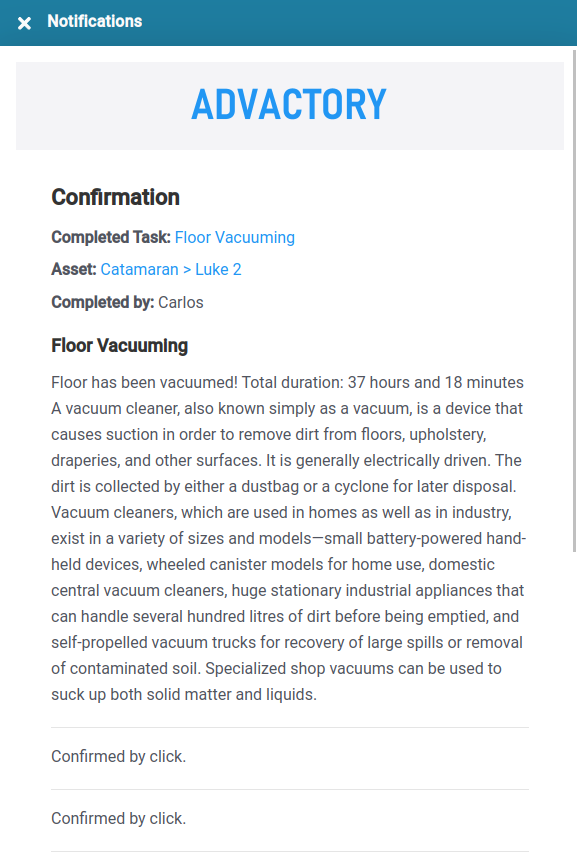
That's all! After saving the changes you can now execute the process via the Execute Now button in the toolbar of the Process tab. Execute the task and the recipient should have a new notification in the inbox.
If you are on a mobile device, it should look similar to this: