Dashboard
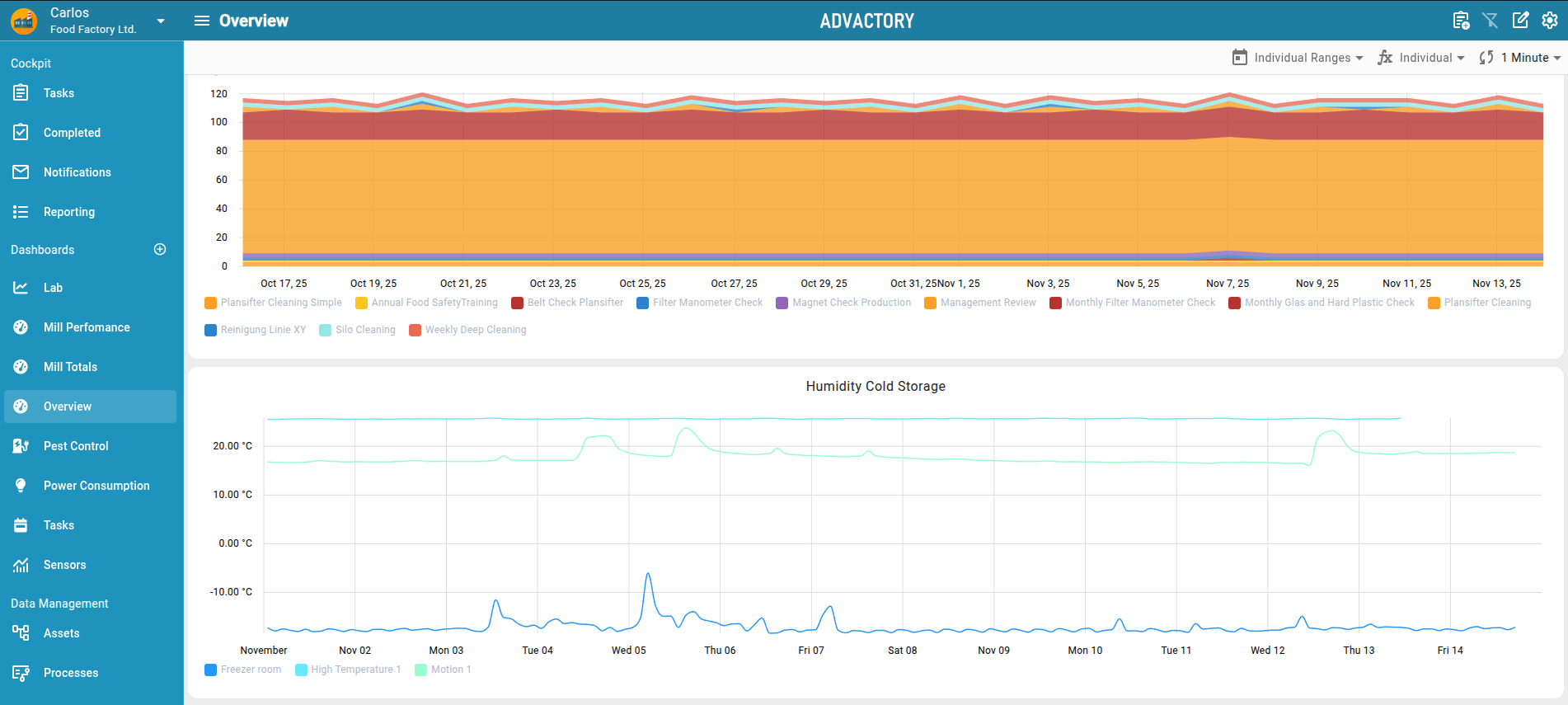
The Dashboard tab gives an overview about all processes in a compressed way. It is very customizable and you can adapt it to the insights you need of your organization. Tasks can be visualized filtered by their status or their asset, documented measurements are plotted into a graph for trend evaluation.
All dashboards are shown in the navigation panel on the left and grouped by their category. Dashboard Categories can only be created by Managers and Admins in the Tenant section. New Dashboards can be created by pressing the plus button next to the Dashboard header in the navigation panel. The button is only accesible by Managers and Admins.
Dashboard Settings
The settings button in the toolbar opens a menu that allows to change the settings of the current dashboard. Here the name, the icon, the category and the primary action can be configured. Additionally, the dashboard permissions are handled through 3 dropdowns.
Users that are not mentioned in any of the three dropdowns do not see the dashboard in their navigation panel and are not allowed to see the dashboard.
Read permissions grant access to the dashboard but the user can not edit dashboard tiles or change dashboard settings.
Write permissions grant all Read benefits plus the ability to edit dashboard tiles.
Owner permissions grant entire access to the dashboard including changing the dashboard settings and dashboard permissions.
| Views/Permissions | None | Read | Write | Owner |
|---|---|---|---|---|
| Can see the dashboard | ❌ | ✔️ | ✔️ | ✔️ |
| Can Edit Dashboard Tiles | ❌ | ❌ | ✔️ | ✔️ |
| Can Change Dashboard Settings | ❌ | ❌ | ❌ | ✔️ |