Tasks
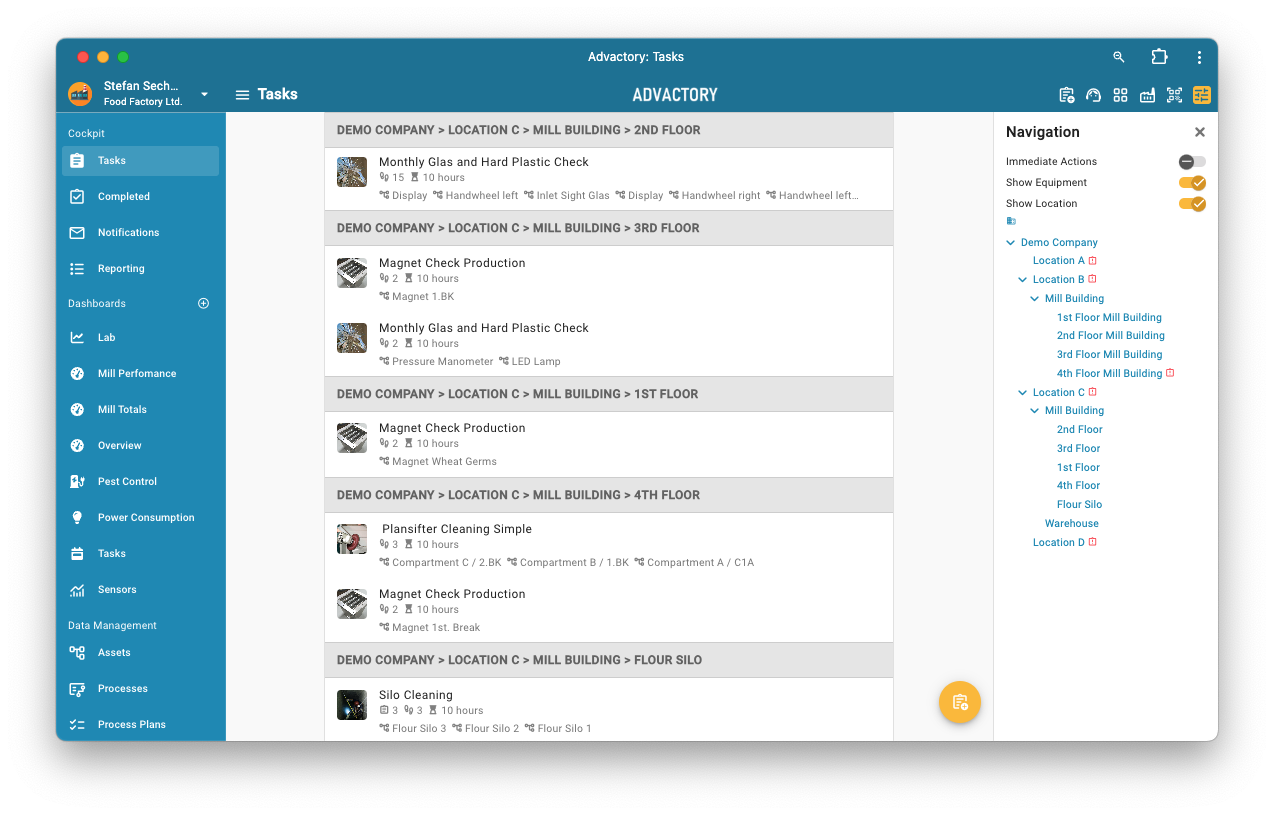
The Tasks view is the first view shown to users with the Operator role after login. All tasks for the logged-in user are shown in a list, ordered by priority. Tasks with only a critically small amount of time remaining for execution are marked with a Critical badge. Clicking on any list item opens the task for immediate execution.
View modes
The list can be further customized with two different view modes by pressing the factory icon in the upper right hand corner or pressing the yellow slide button in the Navigation tab on the right handside.
Overview
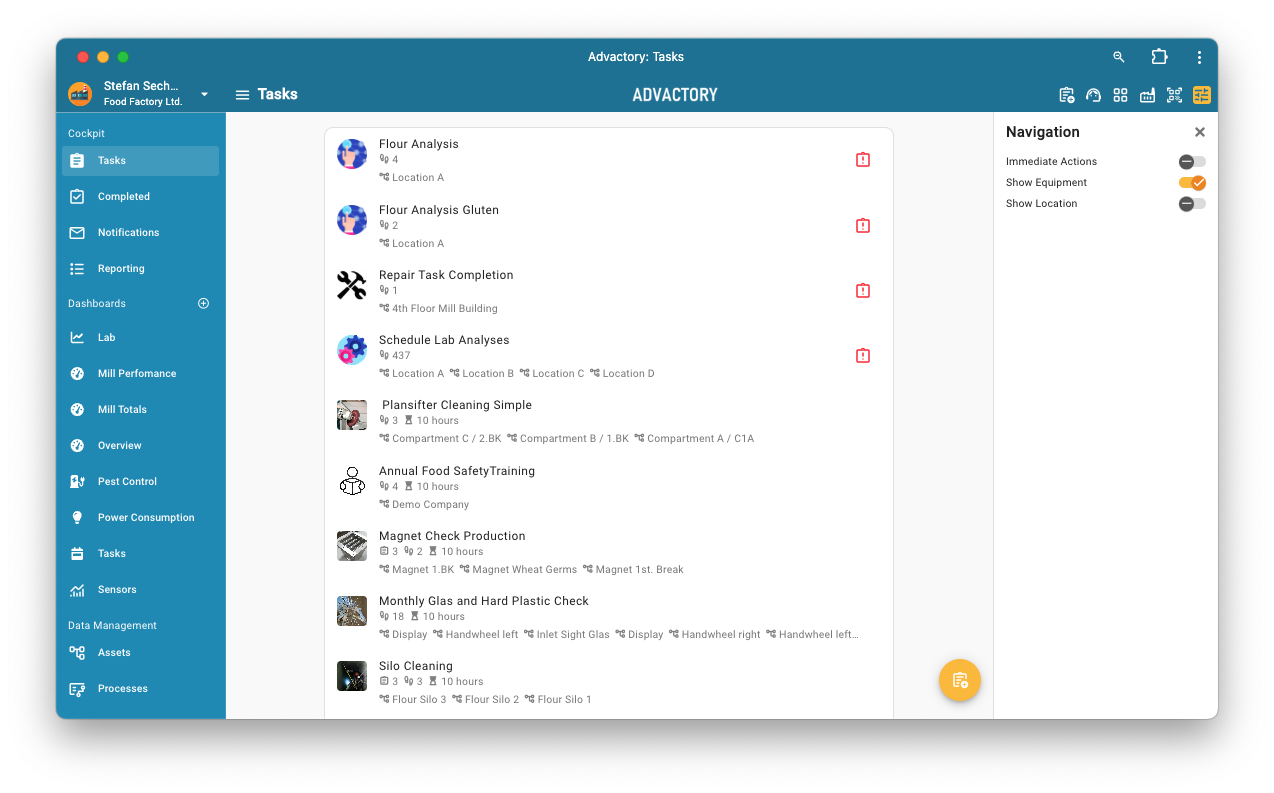
In this view mode, all pending tasks are shown only once, even if they are due for multiple assets. There are no locations shown, either, and the list is sorted by priority only. This view is best suited to get a quick overview of the current pending task list.
By Location
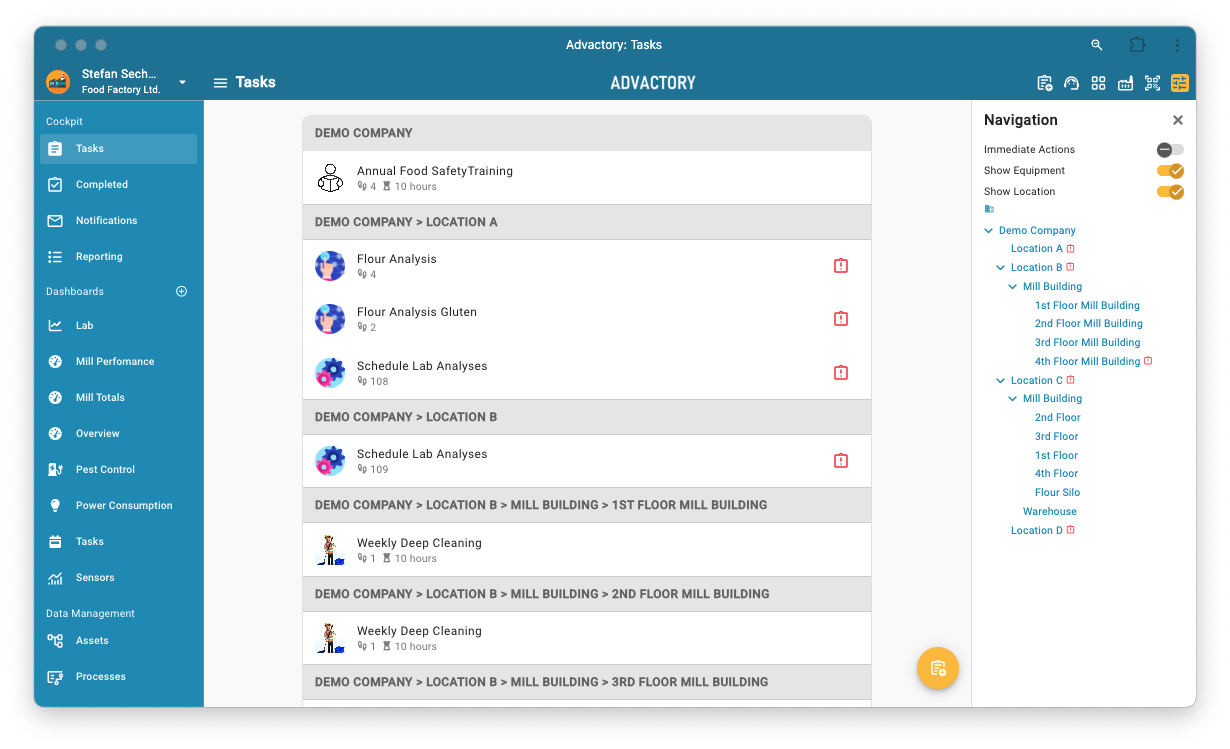
In this view mode, every pending task is shown once for every asset it is due for. The tasks are sorted by location, which is shown above each task. This view is best suited while executing tasks at a specific location.
Execution
In the Task view, on the right side of the task bar is a symbol that reveils if the task is of type Checkpoint (the checklist symbol) or of type Confirmation/Instruction (the play button symbol). When pressing on a task to be executed the Task Execution screen is shown. Depending on the type of the task this screen will have a different appearance, for Checkpoint tasks it will directly show Checklist Execution, for all other tasks it will show a preview of the process which can be seen in the image below.
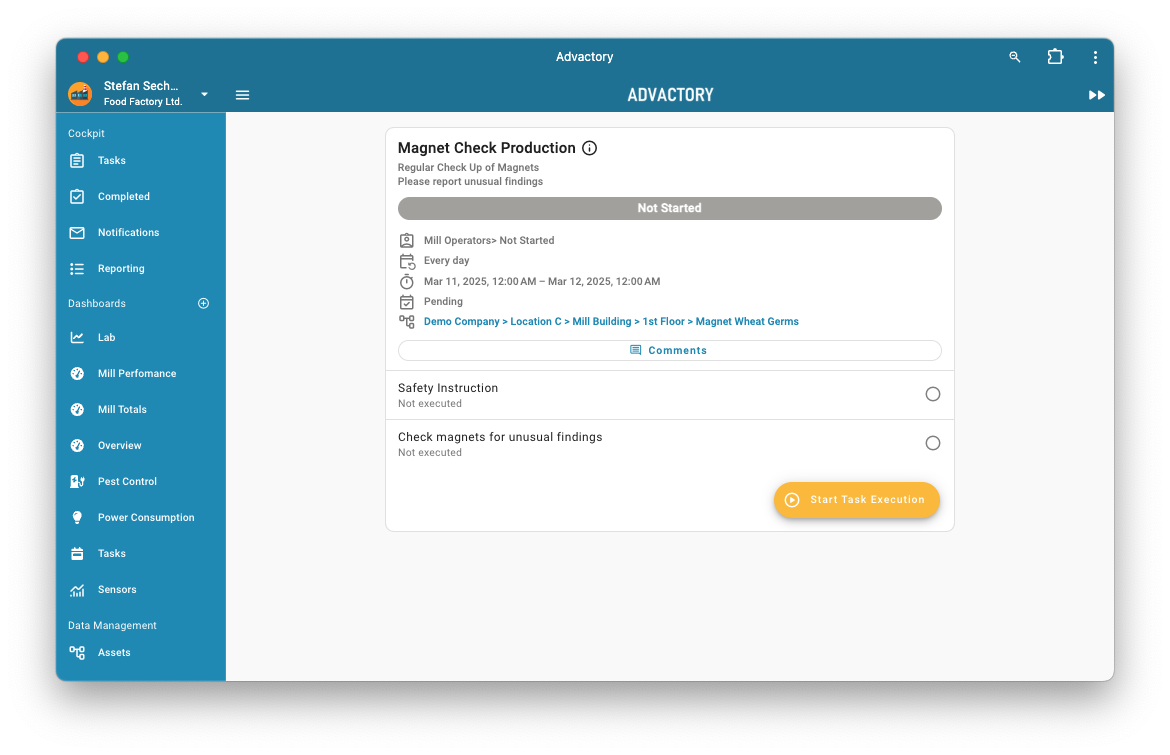
In this case the preview allows to start the Process Execution through the yellow button at the right side.
Installation as PWA
For Operators it might come handy to install Advactory as an App (PWA). This improves the user experience, especially on mobile devices. Follow the installation steps here