Reporting
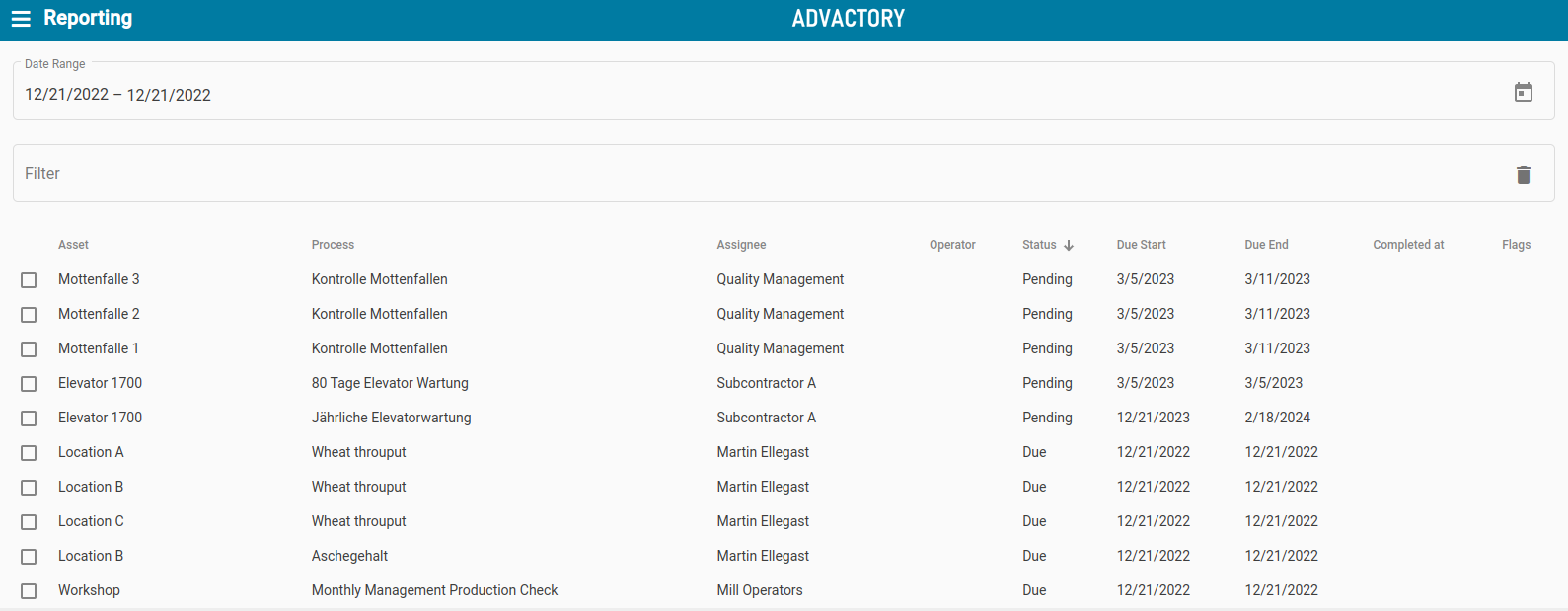
Under the Reporting view the list of all past, current and future tasks can be inspected. The list can be filtered by date, asset, task status, Operator and more.
Through the fulltext search it is also possible to search for recorded data, e.g. a text confirmation or a date confirmation.
When filtering for a date, the following format has to be used: YYYY-MM-DD for example 2025-05-28.
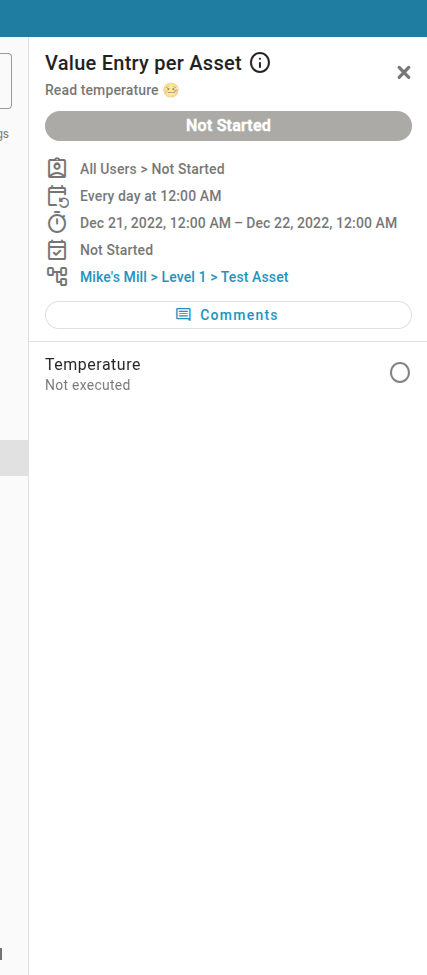
By clicking on a task, the sidepanel opens with more information.
Reporting Actions
At the bottom of the reporting you can find the actions bar:

When a task is select via the checkbox next to it or the checkbox in the actions bar, the other action buttons are enabled.
These actions are not available for users with an operator role.
Close Tasks Manually
If a task has been completed by an operator without documenting it in Advactory, the task can be closed manually with the first button. Document the reason for the manual completion and select the operator that completed the task.
Set Task Priority
If a task should be prioritized by an operator, the second button allows to raise this state for a task. The task will appear at the top of the operator's task list.
Batch Execution
When multiple tasks of the same process need to have the same documentation, the third button can be used to execute them as a batch.
- Select all tasks that need to be executed.
- In the first dialog the selected tasks are grouped by process, process revision and asset. The second line of each group gives more information about these as well as the number of tasks in that group and if any of the tasks are flagged.
- After selecting a group you should be guided to the execution screen. If there are flagged tasks, a preview of the executable tasks will be shown. If you decide to continue with the remaining tasks, you will be guided to the execution screen. If all selected tasks are flagged, the dialog will close and lead you back to the reporting.
A flagged task can not be executed in batch from the reporting. Reasons why a task is flagged are the task being already completed, the task can not be started yet/anymore, the task is currently in progress or the current user is not assigned to the task.
Print Tasks
Clicking this button will open a preview of the selected tasks that will be printed.
Export Tasks
The last button exports the data of the selected tasks into an XLSX file. This can be opened in programs like Microsoft Excel, Apple Numbers or LibreOffice. All tasks that belong to the same process are grouped into the same sheet.